Single Sign On

Follow the Step-by-Step Guide given below for Progate LMS Single Sign On (SSO)

1. Configure Progate LMS as Service Provider

    • Open the WordPress site.
    • Install and activate the Login using WordPress Users ( WP as SAML IDP ) plugin on your WordPress site
      which is acting as Identity Provider.
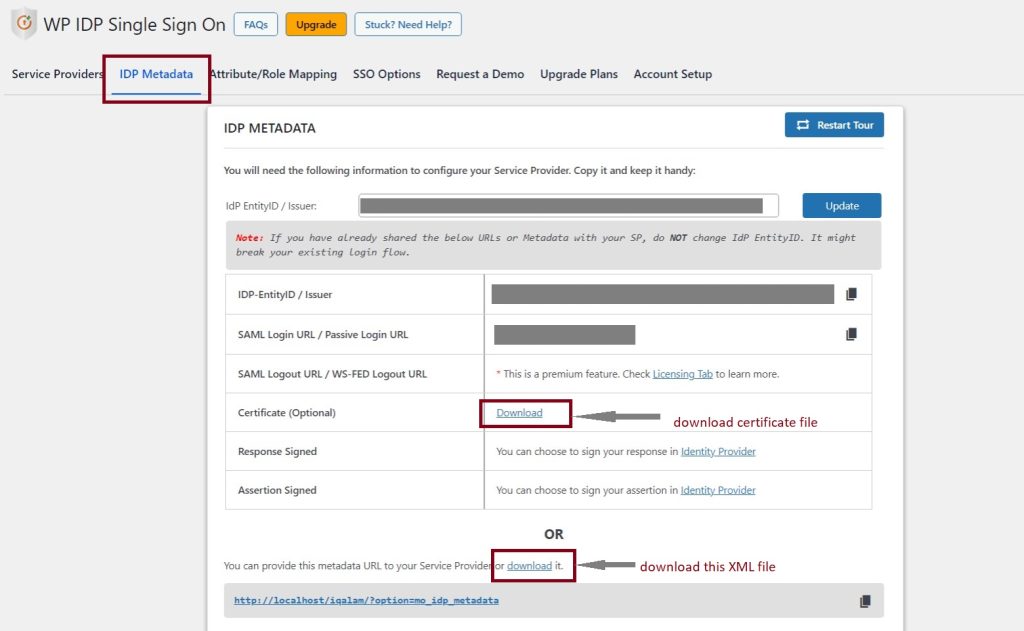
    • Go to the WordPress IDP plugin, navigate to the IDP Metadata tab. Here, you can find the Identity Provider Metadata URL or you can Download the Metadata File.
    • You will find IDP Entity ID, SAML Login URL, Certificate. You would need these to configure the Service provider(Progate LMS).

2. Download Certificate file and Metadata XML file as shown in the image above.

3. Upload the files into the contact form here.

4. Required information will sent to your email which you provided in the contact form.

  • Open the WordPress site.
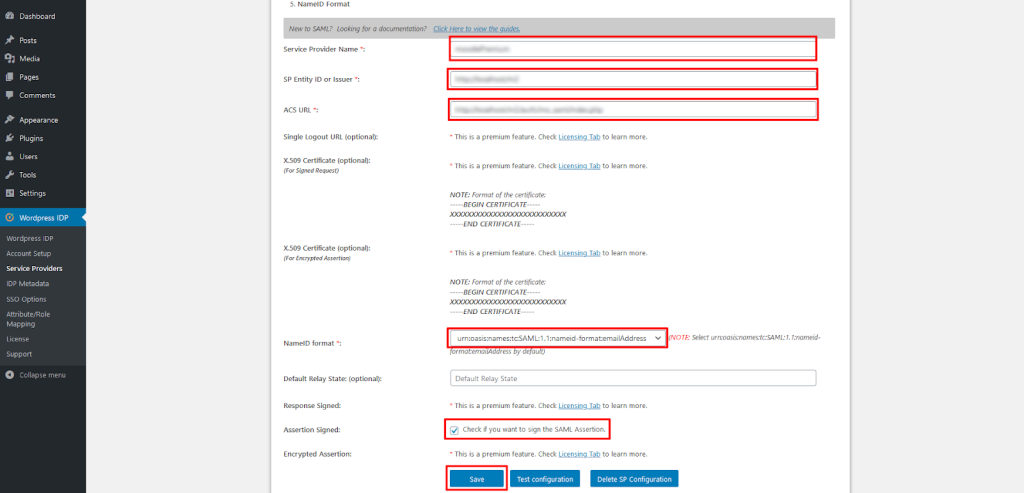
  • Go to the WordPress IDP plugin, navigate to the Service Provider tab.
  • Enter the values corresponding to the information from Progate LMS. Refer to the table below.
Service Provider NameName of your Service Provider.
SP Entity ID or IssuerCopy and paste the SP-EntityID from Progate LMS.
ACS URLCopy and paste the ACS URL from Progate LMS.
NameID Formaturn:oasis:names:tc:SAML:1.1:nameid-format:emailAddress
Assertion SignedChecked
  • Open the WordPress site.
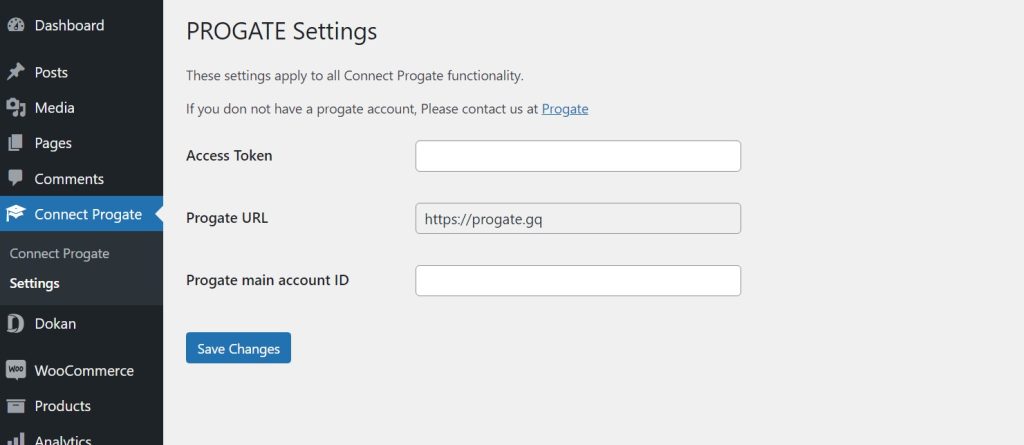
  • Go to the Connect Progate plugin, navigate to Settings.
  • Enter the values corresponding to the information from Progate LMS. Refer to the image below.
PROGATE
Logo
Reset Password
Shopping cart